
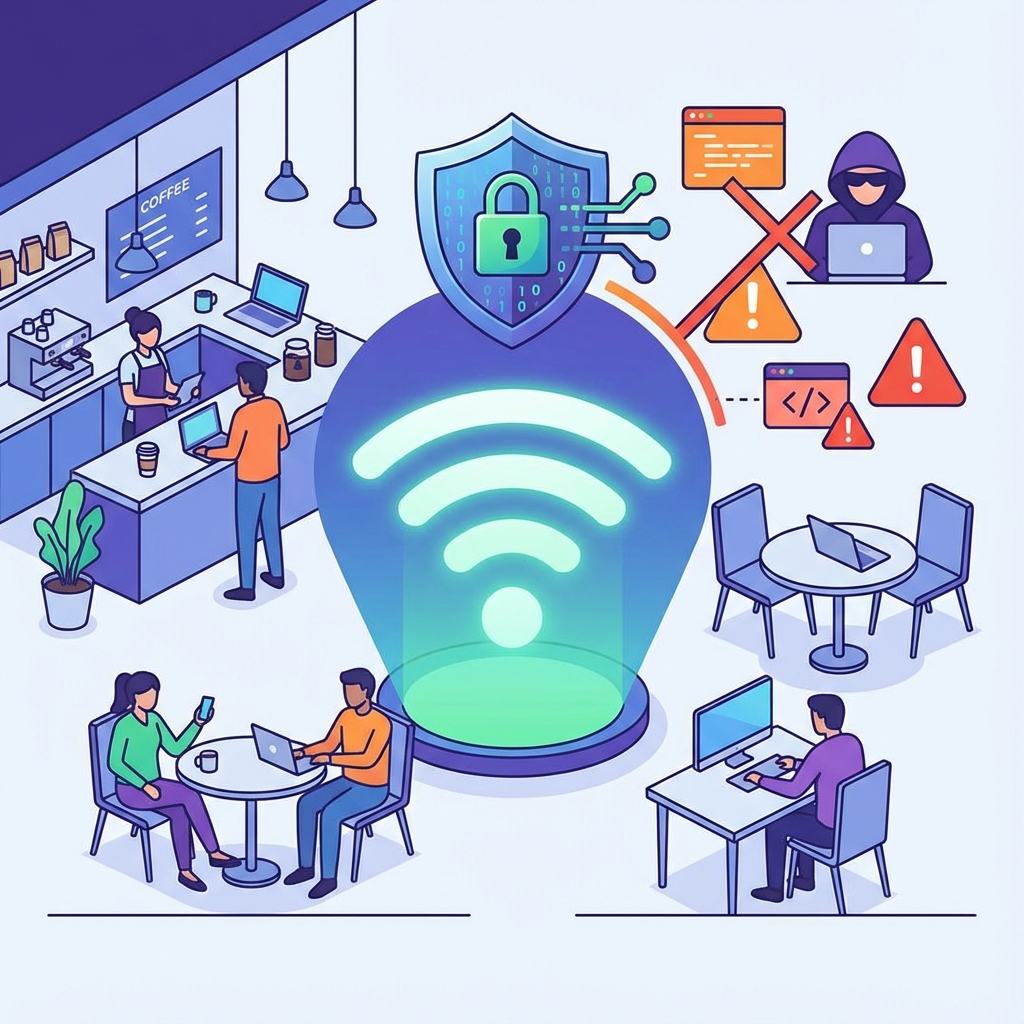
That free WiFi at the coffee shop, airport, or hotel might seem convenient, but it's also one of the biggest security threats you face online. Public WiFi networks are hunting grounds for hackers, and connecting without protection puts your personal data at serious risk.
In this guide, you'll learn exactly why public WiFi is dangerous, what attacks you might face, and how to stay protected—with VPN being your most powerful defense.
Why Public WiFi is Dangerous
Public WiFi networks have inherent security weaknesses that make them risky:
No Encryption
Most public networks are open (no password) or use shared passwords. This means traffic isn't encrypted at the network level—anyone nearby can potentially intercept data.
No Authentication
You don't verify the network's identity, and it doesn't verify yours. This opens the door to impersonation attacks.
Shared Access
You share the network with strangers whose intentions you can't know. Malicious actors blend in with legitimate users.
Minimal Security Configuration
Business owners set up WiFi for convenience, not security. Default settings, weak passwords, and outdated firmware are common.
Common Attacks on Public WiFi
Man-in-the-Middle (MitM) Attack
The attacker positions themselves between you and the network, intercepting all traffic. They can read, modify, or inject data into your connection.
Example: You log into your bank. The attacker captures your credentials as they pass through.
Evil Twin Attack
A fake network mimics a legitimate one. "Starbucks_WiFi_Free" might be an attacker's network, not Starbucks'. Once connected, all your traffic flows through their system.
Packet Sniffing
Using freely available tools, attackers capture data packets from the network. Unencrypted data—emails, passwords, messages—is readable.
Session Hijacking
Attackers steal session cookies that keep you logged into websites. They can take over your active sessions without needing your password.
Malware Distribution
Compromised networks can redirect you to malicious downloads or inject malware into legitimate traffic.
What's at Risk?
- Login credentials for email, social media, banking
- Financial information including credit card numbers
- Personal data like addresses, phone numbers, SSN
- Private communications including emails and messages
- Business data including confidential documents
- Identity theft through collected personal information
How VPN Protects You on Public WiFi
A VPN is your strongest defense on public networks. Here's how it protects you:
Encryption
VPN encrypts all data before it leaves your device. Even if attackers intercept your traffic, they see only encrypted gibberish—completely unreadable without the decryption key.
Secure Tunnel
Your data travels through an encrypted tunnel to the VPN server. This tunnel bypasses the local network entirely—attackers on the public WiFi can't access it.
IP Protection
Your real IP address is hidden. Attackers can't target you directly because they don't know your actual network identity.
Authentication
VPN connections are authenticated, ensuring you're connecting to a legitimate server—not an attacker.
Essential Public WiFi Security Practices
1. Always Use VPN
This is the single most important step. Connect to VPN before doing anything else on public WiFi.
Ryn VPN tip: Enable auto-connect for untrusted networks so you're always protected.
2. Verify the Network
Confirm the network name with staff. Don't connect to networks that look suspicious or are named to trick users.
3. Use HTTPS Websites
Look for the padlock icon and "https://" in URLs. HTTPS encrypts your connection to that specific website.
Note: HTTPS protects individual connections but doesn't prevent all attacks. VPN adds comprehensive protection.
4. Disable Auto-Connect
Don't let your device automatically connect to open networks. You should consciously choose each connection.
5. Turn Off Sharing
Disable file sharing, AirDrop, and network discovery when on public networks. These features can expose your device.
6. Forget Networks After Use
Remove public networks from your saved list. This prevents automatic reconnection and stops attackers from luring you with known network names.
7. Use Mobile Data for Sensitive Tasks
If you can't use VPN, consider using cellular data for banking and other sensitive activities. It's more secure than public WiFi.
8. Enable Firewall
Your device's firewall adds another layer of protection against network attacks.
9. Keep Software Updated
Security updates patch vulnerabilities that attackers exploit. Keep your OS and apps current.
Device-Specific Security Settings
Windows
- Set network type to "Public" when connecting
- Enable Windows Firewall
- Turn off Network Discovery and File Sharing
- Use VPN with kill switch enabled
Mac
- Enable Firewall in Security & Privacy settings
- Disable AirDrop or set to "Contacts Only"
- Turn off file sharing
- Use VPN with kill switch
iPhone/iPad
- Disable auto-join for public networks
- Turn off AirDrop
- Use VPN app with always-on setting
- Forget networks after use
Android
- Disable "Connect to open networks"
- Use VPN with always-on setting
- Forget networks after disconnecting
- Keep WiFi off when not actively using
What to Never Do on Public WiFi (Without VPN)
- Online banking or financial transactions
- Shopping or entering credit card information
- Logging into important accounts
- Accessing work or business systems
- Reading or sending sensitive emails
- Sharing personal or confidential documents
With VPN active, these activities become safe—the encryption protects your data regardless of network security.
How to Tell if WiFi Has Been Compromised
Warning signs that something might be wrong:
- Unexpected login pages: Legitimate networks don't ask for login credentials for unrelated sites
- Certificate warnings: Your browser warning about invalid security certificates
- Slow or erratic connection: May indicate traffic is being intercepted
- Unexpected disconnections: Could be attacks forcing reconnection to capture data
- Multiple networks with similar names: Sign of possible evil twin attack
The Bottom Line
Public WiFi is convenient but dangerous. The threats are real and the attacks are surprisingly easy to execute with freely available tools.
Your best defense is simple: use VPN every time you connect to public WiFi. Ryn VPN's AES-256 encryption and automatic protection features ensure your data stays safe on any network.
Download Ryn VPN and connect with confidence on any public network.
Frequently Asked Questions
Is any public WiFi safe?
No public WiFi is completely safe. Even networks at reputable businesses can be compromised or have evil twin attacks. Always use VPN protection.
Does HTTPS make VPN unnecessary?
No. HTTPS protects data to individual websites, but VPN encrypts all traffic and prevents many attacks that HTTPS can't stop. Use both.
Can hackers see what I do if I use VPN on public WiFi?
No. VPN encryption makes your traffic unreadable to anyone on the local network. They can see encrypted data flowing but cannot decode it.
Should I avoid public WiFi entirely?
Not necessarily. With VPN protection, public WiFi becomes reasonably safe. The key is always using VPN before any activity.
Is using a password-protected public WiFi safe?
Safer than open networks, but not safe. If everyone uses the same password, anyone with that password can potentially attack. VPN is still necessary.